
To manage a share, go to the File System page and click on a share.

Clicking on a share will bring you to the General tab of the Manage Share page. For example, if we click on dltest0 above, we see the following:
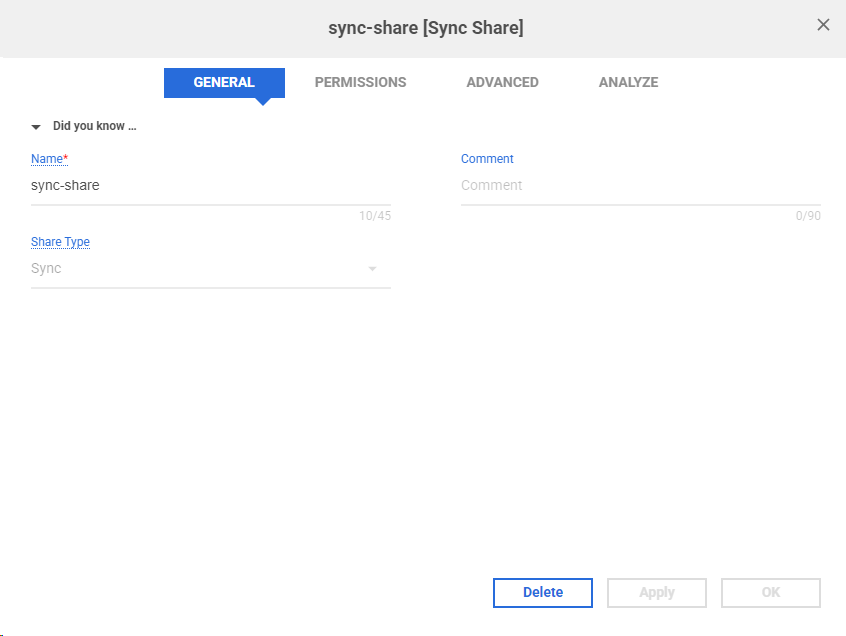
Delete
Delete a share.
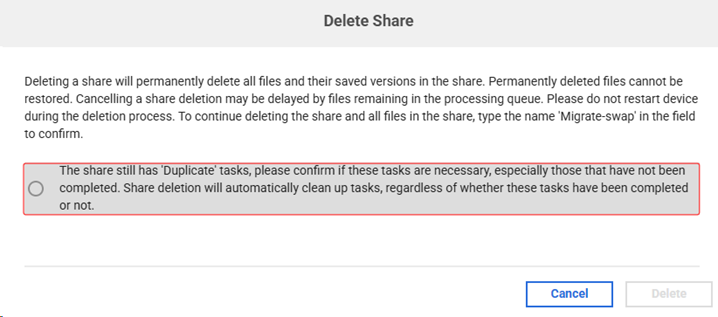
If you want to delete a share that has the Duplicate job, a prompt will appear like the one below. By checking the prompt and entering the share name, the customer can delete both the share and the duplicate job.
Apply
Save any changes you've made while keeping the dialog open for further adjustment.
OK
Save your changes and close the dialog.
Replicate and archive shares will also have a Schedule tab. For more information on the individual tabs and options, please see the articles linked below: